
The idea: record once, summarise with formulas
Most budget spreadsheets break because people type a new table every month. A sturdier design keeps one long list of transactions for the whole year and lets formulas do the monthly totals. You never copy sheets or retype categories; you only add rows. The workbook has three sheets:
- Transactions: one row per income or expense.
- Categories: your category names and a monthly budget for each.
- Summary: pick a year and a month; it shows income, expenses, balance and spending per category.
Step 1. Make the category list
Create a sheet named Categories. In row 1 type the headers Category, Type, Monthly budget. From row 2 down, list your categories, for example Salary (Income), Rent (Expense, 1,350), Groceries (Expense, 450), Transport (Expense, 120). Keep the list short at first; 8 to 15 categories is easier to keep up than 40. Leave * ? ~ out of names and do not start one with < > =: SUMIFS reads those as wildcards or comparisons, so a category like >Rent or Food* would total the wrong rows.
Spell each name exactly once here. Every other sheet refers to this list, so a typo in one place shows up as a missing total later.
Step 2. Make the transaction list
Create a sheet named Transactions with headers in row 1: Date, Type, Category, Description, Amount, Check. Enter amounts as positive numbers; the Type column (Income or Expense) says which way the money went.
Add drop-down lists so the category is always spelled the same way. Select C2:C500, open Data > Data Validation, choose List and set the source to =Categories!$A$2:$A$30. Do the same for B2:B500 with the source Income,Expense.
Dates must be real dates, not text. Type them as 2026-01-05 (or your local date format) and check that they align to the right of the cell; text aligns left and will be skipped by the monthly totals.
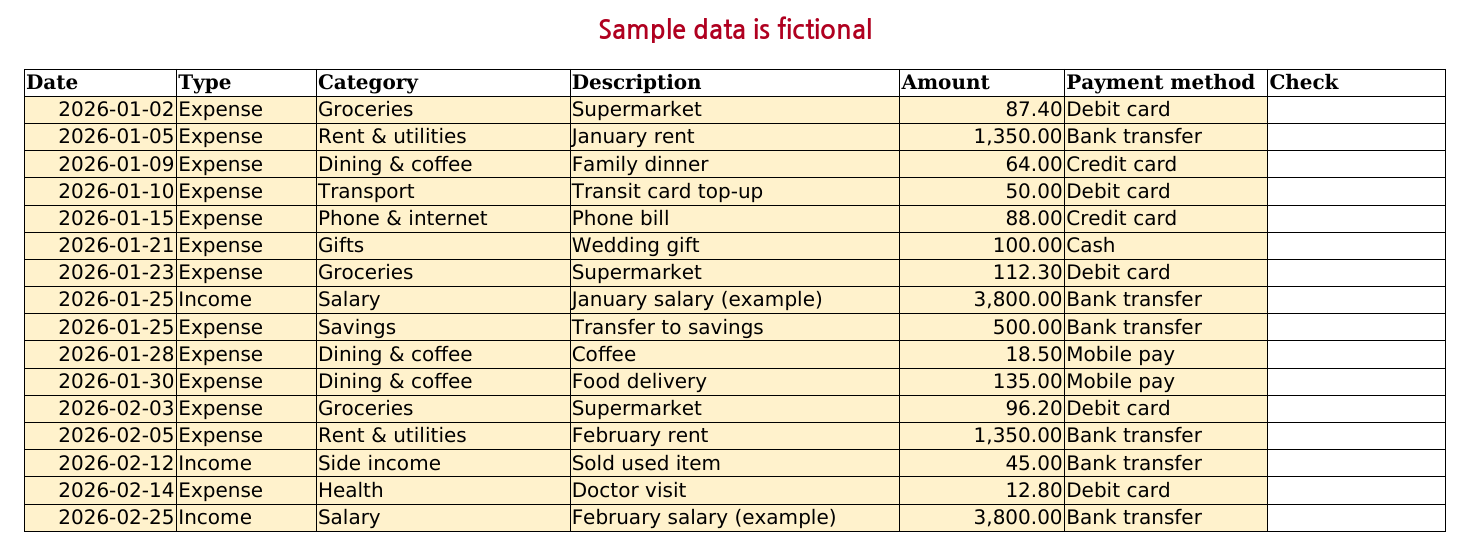
Data validation does not stop someone pasting a wrong value, so add a check column. In F2, then fill down to F500:
Transactions!F2=IF(C2="","",IF(COUNTIF(Categories!$A$2:$A$30,C2)=0,"Unknown category",""))
It stays blank for good rows and says Unknown category when the category is not on your list.
Step 3. Pick the month on the summary sheet
Create a sheet named Summary. Type the year in B1 (2026) and the month number in B2 (1 for January). In B3, build the first day of that month:
Summary!B3=DATE(B1,B2,1)
Every total below compares the transaction dates with B3 and with EDATE($B$3,1), the first day of the next month. Using "on or after the 1st and before the next 1st" works for months of any length and for December, where the next month is in the next year.
Step 4. Income, expenses and balance with SUMIFS
SUMIFS adds the amounts whose other columns meet every condition you give it. Put the labels Income, Expenses and Balance in D1:D3 and these formulas in E1:E3:
E1=SUMIFS(Transactions!$E$2:$E$500,Transactions!$B$2:$B$500,"Income",Transactions!$A$2:$A$500,">="&$B$3,Transactions!$A$2:$A$500,"<"&EDATE($B$3,1))
E2=SUMIFS(Transactions!$E$2:$E$500,Transactions!$B$2:$B$500,"Expense",Transactions!$A$2:$A$500,">="&$B$3,Transactions!$A$2:$A$500,"<"&EDATE($B$3,1))
E3=E1-E2
The text ">="&$B$3 glues the comparison sign to the date, which is how SUMIFS takes a date condition.
Step 5. Spending per category, budget vs actual
From row 5 put headers Category, Budget, Spent, Left, % used. Type your expense category names in A6 downward (the same spelling as on Categories). Then in row 6, and fill down:
B6=IFERROR(VLOOKUP($A6,Categories!$A$2:$C$30,3,FALSE),0)
C6=SUMIFS(Transactions!$E$2:$E$500,Transactions!$C$2:$C$500,$A6,Transactions!$A$2:$A$500,">="&$B$3,Transactions!$A$2:$A$500,"<"&EDATE($B$3,1))
D6=B6-C6
E6=IF(B6=0,"",C6/B6)
Format column E as a percentage. The dollar signs matter: $A6 keeps pointing at column A when you copy across, and $B$3 always points at the month start.
To flag overspending, select C6:C20, choose Home > Conditional Formatting > New Rule > Use a formula to determine which cells to format, enter this rule and pick a red fill:
=AND($B6>0,$C6>$B6)The $B6>0 part keeps categories without a budget from turning red.
Step 6. Use it every month
- Add new transactions at the bottom of Transactions. Sorting is optional; the formulas do not care about order.
- Change B2 on Summary to see another month. Change B1 for another year; the old rows stay and still count for their own year.
- Glance at the Check column now and then. A row with Unknown category is missing from the category totals, but it is still counted in Income or Expenses because those only look at Type. If the two disagree, that row is the reason.
Common problems
- A total is 0 but there are rows for that month: the dates are probably text. Retype one date, or use Data > Text to Columns > Finish on the column to convert it.
- A category total looks low: look for a trailing space or a different spelling in Transactions. If Income or Expenses looks wrong instead, check for a row with the wrong Type: category totals ignore Type, but those two totals use it.
- More than 500 rows: change every
$500to a larger number, or convert the list to an Excel Table (Insert > Table) and use the table's column names.
Common questions
How much should I save each month for each savings goal by its target date?
The workbook built in this guide does not track savings goals. For one goal the arithmetic is (target amount - saved so far) / months left. The free Sinking Fund Calculator does this for several goals at once and adds them into one monthly total. The paid Household Budget template has a Sinking Funds sheet for up to 30 goals that uses the same month rule.
How do I see the totals for a different month or year?
On the Summary sheet change the month number in B2 for another month, or the year in B1 for another year (Step 6). Every total compares the transaction dates with the first day of that month, so the old rows stay and still count for their own month. You never copy the sheet or retype categories.
Prefer a ready-made file?
This page gives you a working budget. If you would rather start from a finished file, there is a free lite edition (10 categories, 300 rows, no sign-up) and a paid version with an annual summary, budget vs actual, sinking funds and a payday budget.
Household Budget & Expense Tracker on Gumroad · USD 7Need more than one template? This one is also in the Excel Templates Bundle (all 4) on Gumroad: $19 instead of $30 bought separately.
Free lite edition (xlsx), no sign-upScreenshots and details of the template
Free Sinking Fund Calculator (runs in your browser)