
Quote, estimate or invoice?
A quote (or price quotation) tells a client what you will charge before the sale or the work: items, quantities, prices, tax, total and how long those prices hold. An invoice comes afterwards and asks for payment. Whether an accepted quote binds you depends on your contract and local law; this page covers the spreadsheet only.
The workbook has three sheets: Settings (tax rate and rounding), Items (your price list) and Quote.
Step 1. Settings and a price list
Create a sheet named Settings. Type Rounding in A12 and Round in B12, then Tax rate in A13 and your rate in B13 (for example 8%, or 0% if you do not charge tax). Rows 1 to 11 are free for your business details.
Create a sheet named Items with the headers Code, Description, Details, Unit, Unit price, Taxable in A1:F1 and one row per product or service from row 2, for example A-001 | Copy paper A4 | 80 gsm, 5 x 500 sheets | box | 23.50 | Yes. The formulas read rows 2 to 201 (200 items). Start codes with a letter: Excel may turn 001 into 1, and the code is then not found. A blank Taxable counts as Yes; type No for items without tax.
Step 2. The quote header and a valid-until date
Create a sheet named Quote. In A3:A8 type Quote No, Date, To, Contact, Email, Valid until, and put the values in column C (merge C:E if you want more room). Type a quote number such as Q-2026-001 in C3; a prefix that differs from your invoices keeps the two series apart. Type the date in C4 and the client in C5.
Valid until is the last day your prices hold. Type a date, or count days from the quote date:
C8=C4+30
Change 30 to the period you offer and format C8 as a date. If the client accepts after that date, check your prices before you confirm.
Step 3. Lines: type a code and a quantity
In row 12 type the headers No, Code, Description, Details, Unit, Taxable, Qty, Unit price, Amount, Tax, Note in A to K. Rows 13 to 32 give you 20 lines, and you type only in Code (B) and Qty (G). Put these in row 13 and fill them down to row 32:
C13=IF($B13="","",IFERROR(INDEX(Items!$B$2:$B$201,MATCH($B13,Items!$A$2:$A$201,0))&"","Code not found"))
F13=IF($B13="","",IFERROR(IF(INDEX(Items!$F$2:$F$201,MATCH($B13,Items!$A$2:$A$201,0))="No","No","Yes"),""))
H13=IF($B13="","",IFERROR(INDEX(Items!$E$2:$E$201,MATCH($B13,Items!$A$2:$A$201,0)),""))
MATCH finds the row of the code in the Items list and INDEX returns the value from the same row of another column. Unlike VLOOKUP there is no column number, so inserting a column on Items does not shift the results. For Details (D13) and Unit (E13), copy the Description formula, change $B$2:$B$201 to $C$2:$C$201 or $D$2:$D$201, and replace "Code not found" with "".
An unknown code shows Code not found and no price, so the line stays out of the totals instead of being quietly priced at 0. Leave * ? ~ out of codes: MATCH reads them as wildcards, so A* would match another code. For a code drop-down, select B13:B32 and use Data Validation > List with the source =Items!$A$2:$A$201. Qty can be a decimal such as 1.5 days.
Step 4. Amount and tax on each line, with a rounding choice
I13=IF(OR($H13="",$G13=""),"",IF(Settings!$B$12="Round down",ROUNDDOWN(ROUND($G13*$H13,6),2),ROUND(ROUND($G13*$H13,6),2)))
J13=IF($I13="","",IF($F13="No",0,IF(Settings!$B$12="Round down",ROUNDDOWN(ROUND($I13*Settings!$B$13,6),2),ROUND(ROUND($I13*Settings!$B$13,6),2))))
Fill both down to row 32. Amount is Qty times Unit price, rounded to 2 decimals. Tax is that amount times the rate in Settings!B13, or 0 on lines marked No. Both follow B12: Round rounds half up, Round down drops the extra decimals. The inner ROUND(...,6) first removes tiny floating-point errors (for example, 2.5 x 3.33 is stored as 8.32499...), so the outer rounding sees the same number you would get by hand.
This sheet calculates tax on each line and adds it up. The invoice guide applies the rate once to the taxable subtotal instead. The two can differ: three taxable lines of 0.15 at 10% with Round down give 0.01 + 0.01 + 0.01 = 0.03 per line, but 0.04 on the total. Use the method your tax rules expect, and the same one on the quote and the invoice.
Step 5. Subtotal, tax and total
Type Subtotal / Tax in A33 and Total in A34, then:
I33=SUM($I$13:$I$32)
J33=SUM($J$13:$J$32)
I34=$I$33+$J$33
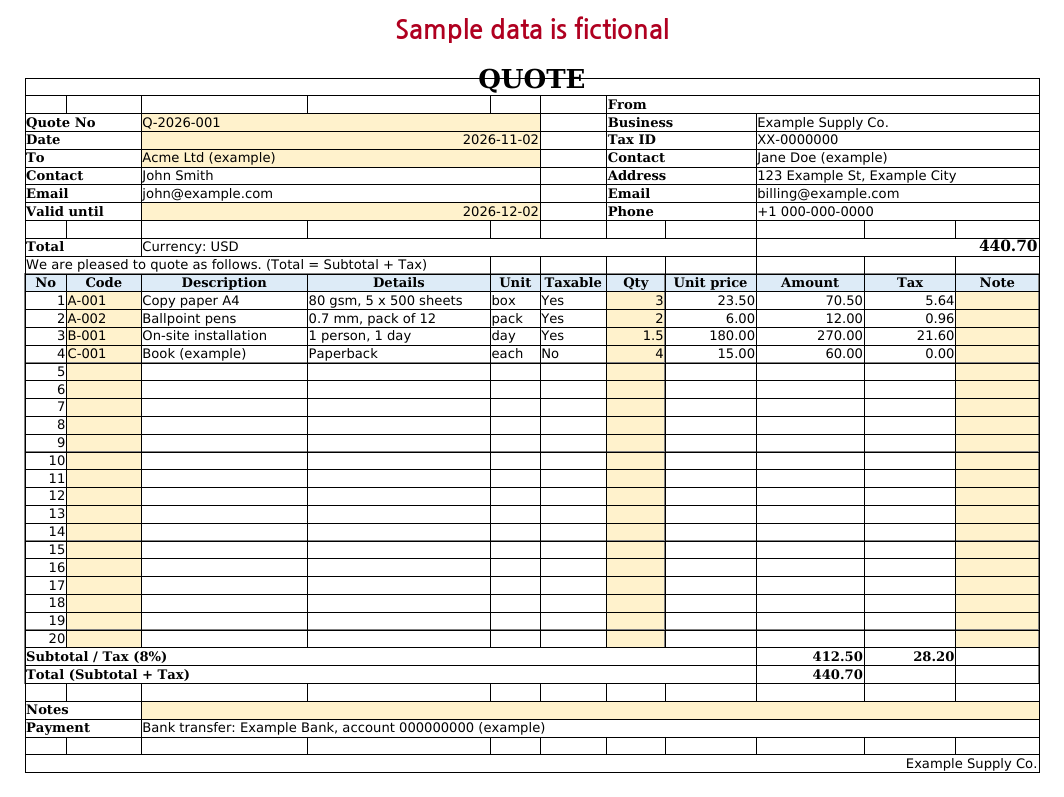
With the fictional sample in the screenshot (3 boxes of paper at 23.50, 2 packs of pens at 6.00, 1.5 days of installation at 180.00 and 4 books at 15.00 that are not taxable), the subtotal is 412.50, tax at 8% is 28.20 and the total is 440.70.
Under the table, add notes such as what is included and delivery time. Set the print area to A1:K39, fit it to one page in Page Setup, and save a PDF of every quote you send.
Step 6. Turn an accepted quote into an invoice
- Right-click the Quote tab, choose Move or Copy, tick Create a copy and rename the copy
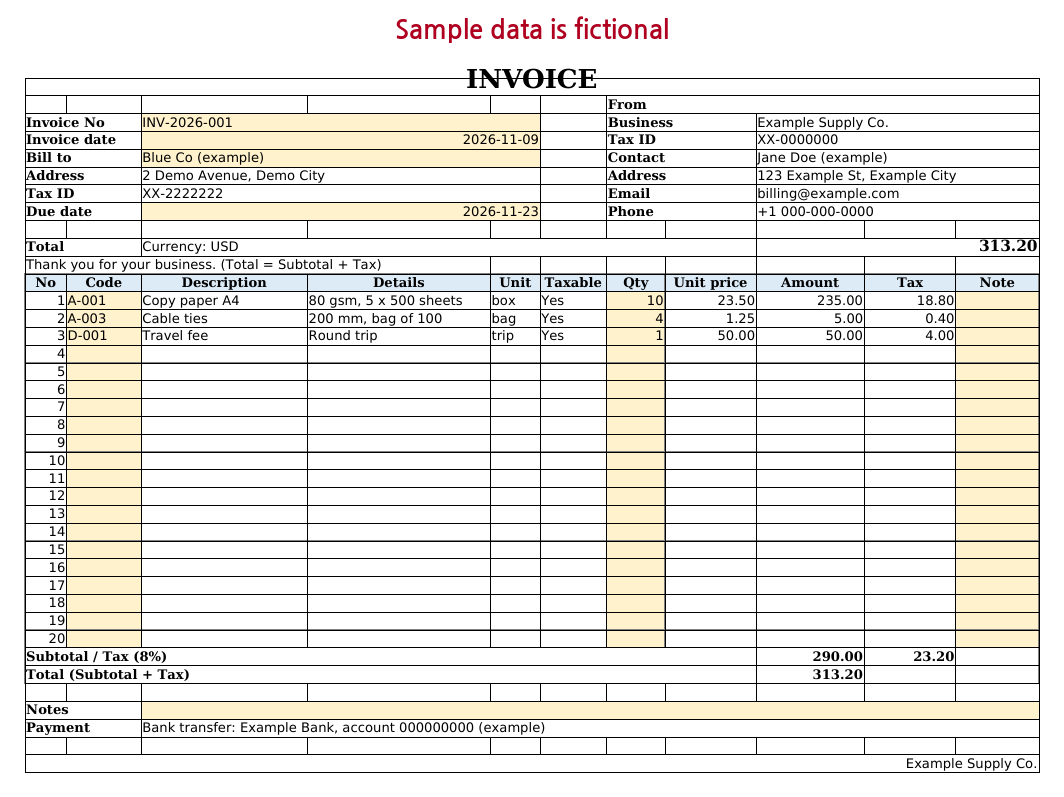
Invoice. - Change the title to INVOICE and give it a number from your invoice series. Change Date to the invoice date and replace Valid until with a due date, for example
=C4+30for 30-day terms. - Leave the codes and quantities as they are, so the invoice bills what was quoted. Change only what you agreed with the client.
- Compare the total with the PDF of the accepted quote. Prices come from Items, so if you changed a price after sending the quote, the copy shows the new one. Type the quoted price over the Unit price cell of that line; this replaces the formula on that line only.
Invoice numbers, due dates and payment details are covered in How to make an invoice in Excel. To see which quotes are still open, keep a list (number, date, client, total, status) and copy totals in with Paste Values.
Common problems
- "Code not found" for a code that exists: an extra space, or a number on one sheet and text on the other.
- A line has a price but no amount: its Qty is blank.
- The total is a cent off the client's figure: tax per line versus on the total, or Round versus Round down (Step 4).
- An old quote shows new prices: the lines read today's Items list. The PDF is your record of what you sent.
Common questions
How long should a quote be valid?
That is your choice. A shorter period protects you when your costs change often; a longer one gives the client time to decide. Put the date on the quote (Step 2) and check your prices again if the client accepts after it.
What is the difference between a quote and an estimate?
Usage varies. Often an estimate is an approximate price that can change, while a quote is a fixed price for a set period. Write on the document which one it is and what happens if the work changes. This page is not legal advice.
Prefer a ready-made file?
This page gives you a working quote. If you would rather start from a finished file, our paid Quote & Invoice Generator has a Quote sheet with the same cells and formulas as this page (its Valid until is a typed date), a matching Invoice sheet, your business details, tax name and currency on a Settings sheet, a Clients list (200) that fills in the client's details, a Ledger (500 rows) with automatic totals and a one-page print layout. One tax rate per file; there is no free edition.
Quote & Invoice Generator on Gumroad · USD 7Need more than one template? This one is also in the Excel Templates Bundle (all 4) on Gumroad: $19 instead of $30 bought separately.
Screenshots and details of the template
Free Invoice Total Calculator (runs in your browser)