
What a basic invoice needs
An invoice is a request for payment. Most include: your business name and contact details, the customer's name, an invoice number that is unique, the issue date and due date, a line for each item (description, quantity, unit price, amount), the subtotal, any tax and the total due, and how to pay. Some countries and tax registrations require more (a tax ID, specific wording, or electronic invoicing). This guide covers the spreadsheet mechanics only; check what applies to you with your tax authority or an adviser.
Step 1. Make an item list
Create a sheet named Items with headers in row 1: Code (A), Description (B), Unit price (C), Taxable (D). Fill in one row per product or service, for example A-001 | Copy paper A4 | 23.50 | Yes. Codes must be unique; short codes are faster to type than full names.
Keeping prices here means you change a price once and every new invoice uses it.
Step 2. Lay out the invoice header
Create a sheet named Invoice. Put your business details at the top right and these labels in A2:A6: Invoice no, Date, Due, Tax rate, Sequence. Type the date in B3, your tax rate in B5 (for example 8%, or 0% if you do not charge tax) and the running invoice number in B6 (1, 2, 3...). Then:
B2="INV-"&YEAR(B3)&"-"&TEXT(B6,"000")
B4=B3+30
With the date 2026-11-02 and sequence 7, B2 shows INV-2026-007. Change 30 to your payment terms. Avoid reusing a number: it is usually safest to raise B6 by one for every invoice you issue, including ones you later cancel.
Step 3. Line items that fill themselves in
In row 9 type headers Code, Description, Qty, Unit price, Amount, Taxable in A to F. Rows 10 to 29 give you 20 lines. You will only type in columns A and C. Put these formulas in row 10 and fill them down to row 29:
B10=IF($A10="","",IFERROR(VLOOKUP($A10,Items!$A$2:$D$200,2,FALSE),"Code not found"))
D10=IF($A10="","",IFERROR(VLOOKUP($A10,Items!$A$2:$D$200,3,FALSE),0))
E10=IF(OR($A10="",$C10=""),"",ROUND($C10*$D10,2))
F10=IF($A10="","",IFERROR(VLOOKUP($A10,Items!$A$2:$D$200,4,FALSE),"No"))
How they work: VLOOKUP($A10,Items!$A$2:$D$200,2,FALSE) finds the code in the first column of the item list and returns the value from the 2nd column (description); 3 returns the price and 4 the taxable flag. FALSE means exact match, which you always want for codes. IFERROR turns an unknown code into "Code not found" and a price of 0, so a typo is visible instead of silently wrong. Leave * ? ~ out of codes: VLOOKUP reads them as wildcards even with FALSE, so A* would match another code. The outer IF($A10="","",...) keeps empty lines blank.
The amount is rounded to 2 decimals per line, so the lines on the printed invoice add up exactly to the subtotal.
Step 4. Subtotal, tax and total
Below the lines, put the labels Subtotal, Tax and Total in D31:D33 and:
E31=SUM(E10:E29)
E32=ROUND(SUMIFS(E10:E29,F10:F29,"Yes")*$B$5,2)
E33=E31+E32
The tax formula adds only the lines marked Yes and applies the rate in B5. This calculates tax on the taxable total; some businesses calculate it per line and add it up, which can differ by a cent. Use whichever your rules or accounting software expect. Format D10:E33 with 2 decimals.
Step 5. Make it print well
- Select A1:F40 (or wherever your invoice ends) and choose Page Layout > Print Area > Set Print Area.
- In Page Setup, choose your paper (A4 or Letter) and Fit to 1 page wide by 1 tall.
- Hide gridlines (View, untick Gridlines) and add borders only where you want lines.
- Save a PDF copy of every invoice you send (File > Save As > PDF or Export), named by invoice number. Keep the PDF as your copy; the spreadsheet will change next time you use it.
Step 6. Reuse it
For the next invoice: raise the sequence in B6, change the date and customer, clear columns A and C of the lines and type the new codes and quantities. Keep a simple list of issued invoices (number, date, customer, total, paid date) on another sheet so you can see what is still unpaid.
If you bill in more than one currency, do not mix them on one invoice. Put the currency code next to the total (for example "Total, USD") rather than relying on a cell format, so it survives when the file is opened on a computer with different regional settings.
Common problems
- "Code not found" for a code that exists: an extra space, or the code is stored as a number on one sheet and text on the other (for example 001 vs 1). Make codes start with a letter to avoid this.
- Total is off by a cent from a calculator: rounding. Lines are rounded to cents first, then tax is rounded once.
- A new item does not appear: it is below row 200. Extend
$D$200in the formulas.
Common questions
How do I add a late fee or interest to an invoice?
Add it as one more item. On the Items sheet add a row such as LATE | Late fee | 15.00 | No, then type LATE and a quantity of 1 on the invoice. The Taxable column decides whether the tax rate applies to that line, so set it to match the rules where you are. The guide has no interest calculation: work out the interest yourself from the rate in your contract or local law, then add the amount as an item in the same way.
How do I number invoices automatically?
Type a running number in B6 and let the formula in B2 build the invoice number from the year and that number, for example INV-2026-007 (Step 2). Raise B6 by one for every invoice you issue. Reusing a number is best avoided, so it is usually safest to count cancelled invoices too. Check whether your country has numbering rules.
Prefer a ready-made file?
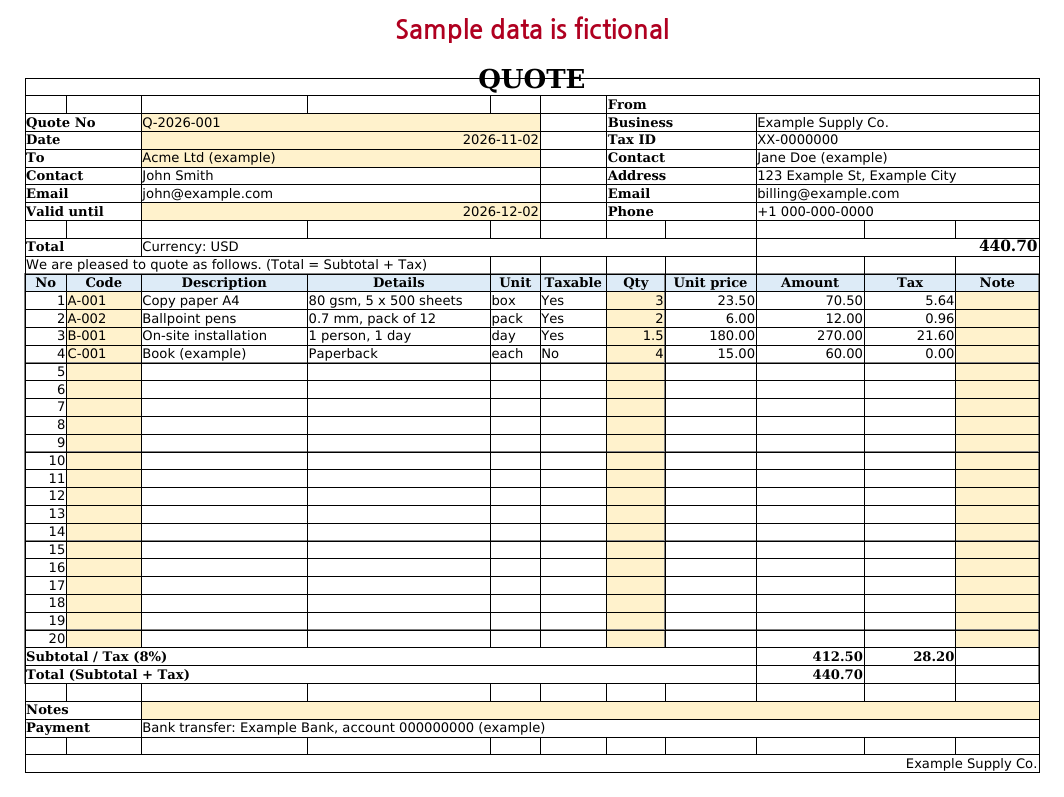
This page gives you a working invoice. If you would rather start from a finished file, our paid template adds a client list, a matching quote sheet, a choice of rounding, a ledger of issued documents and a one-page print layout.
Quote & Invoice Generator on Gumroad · USD 7Need more than one template? This one is also in the Excel Templates Bundle (all 4) on Gumroad: $19 instead of $30 bought separately.
Screenshots and details of the template
Free Invoice Total Calculator (runs in your browser)