
The idea: log each payment once, let formulas do the rest
Side income arrives in small pieces from different places: a marketplace payout, a client transfer, a tip. If you only look at your bank balance, it is easy to spend money you will later need for taxes or for the business. A simple tracker answers three questions for every month: how much came in after fees, how much went out, and how much should be sitting aside. The workbook has four sheets:
- Settings: the year, your set-aside percentage and your expense categories.
- Income: one row per payment you receive.
- Expenses: one row per business expense.
- Summary: twelve months and a year total, calculated from Income and Expenses.
Step 1. Settings: year, set-aside % and categories
Create a sheet named Settings. Put the label Year in A1 and the year in B1 (2026). Put Set-aside % in A2 and a percentage in B2, typed with the % sign (for example 25%), so the cell holds 0.25.
The set-aside % is a savings rule you choose, not a tax calculation. What you will actually owe depends on where you live, your other income, deductions and the rules that apply to you. Ask a tax professional or your tax authority what share makes sense; the 25% here is only an example. Change B2 at any time and every total updates.
In D1 type Categories and list your expense categories below it, for example Supplies, Software, Shipping, Equipment, Advertising, Phone & internet. Spell each one once here; the other sheets refer to this list.
Step 2. The income sheet: net income and set-aside per payment
Create a sheet named Income with headers in row 1: Date, Platform or client, Description, Gross, Fees, Net, Set-aside. Enter the gross amount the customer paid and the fees the platform or payment processor kept, both as positive numbers. If a payout already has fees taken off and you do not know them, enter the payout as Gross and leave Fees empty.
In F2 (net income) and G2 (set-aside), then fill both down to row 1000:
Income!F2=IF(D2="","",D2-E2)
Income!G2=IF(F2="","",ROUND(F2*Settings!$B$2,2))
Both stay blank until you type a gross amount, so the empty rows do not show zeros. The set-aside is rounded to cents per payment, which makes it easy to move that exact amount to a separate savings account when the money arrives.
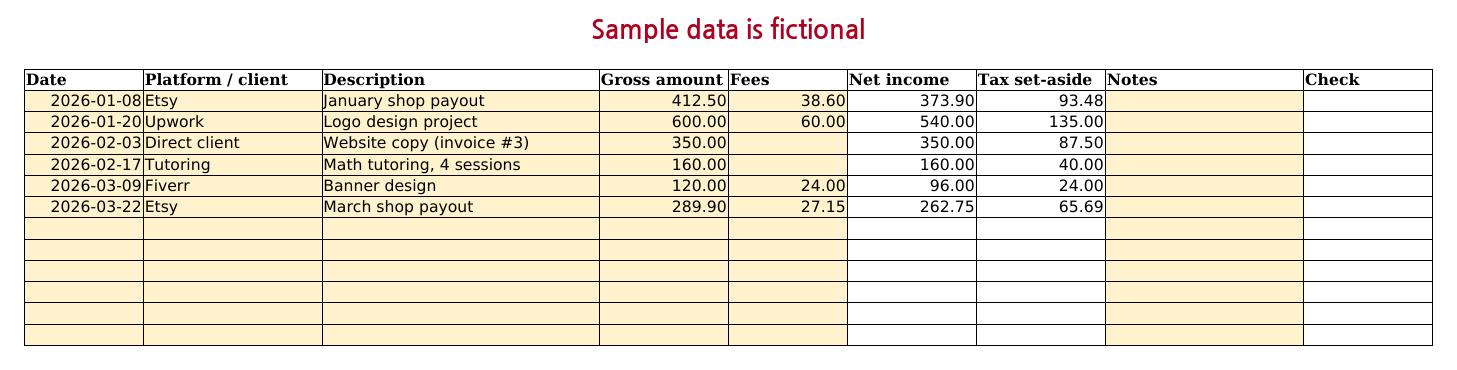
Dates must be real dates. Type them as 2026-03-14 (or your local format) and check that they align to the right; text aligns left and is skipped by the monthly totals.
Step 3. The expense sheet with a category check
Create a sheet named Expenses with headers Date, Category, Description, Amount, Check. For a drop-down, select B2:B1000, open Data > Data Validation, choose List and set the source to =Settings!$D$2:$D$30. Pasted values skip validation, so add a check in E2 and fill down. It flags a missing category as well as one that is not on the list:
Expenses!E2=IF(D2="","",IF(OR(B2="",COUNTIF(Settings!$D$2:$D$30,B2)=0),"Unknown category",""))
Only record what you spent for the side hustle. Which expenses you may deduct is a tax question; the tracker just keeps the list tidy so you can answer it later.
Step 4. Twelve months with SUMIFS
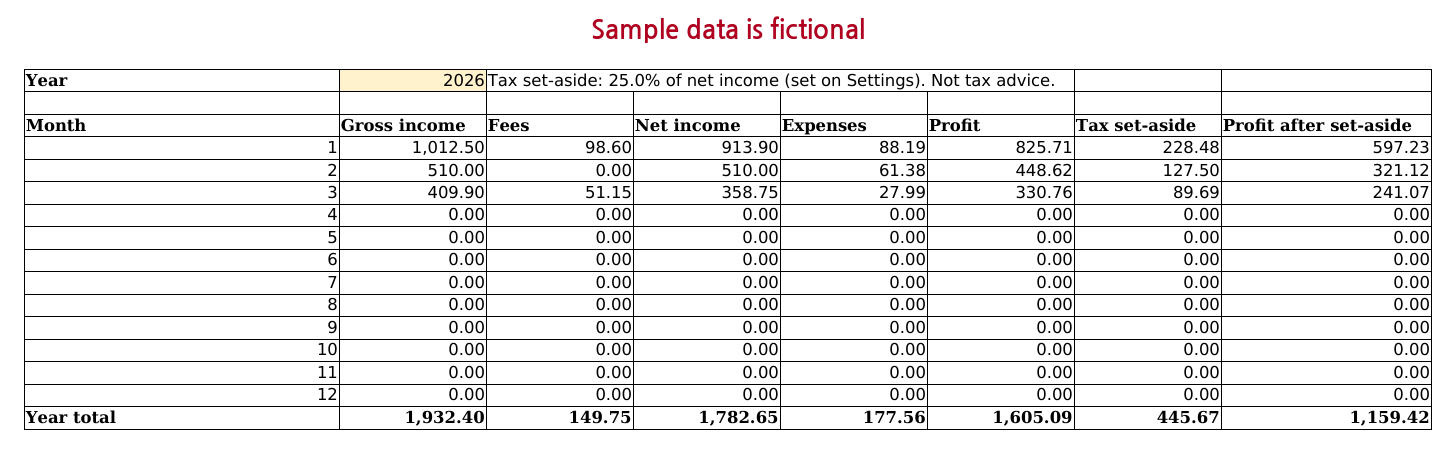
Create a sheet named Summary. In row 5 put headers Month, Net income, Expenses, Profit, Set-aside, After set-aside. In A6 build the first day of the year, and in A7 the next month, filled down to A17:
A6=DATE(Settings!$B$1,1,1)
A7=EDATE(A6,1)
Format A6:A17 as mmm yyyy. Now in row 6, filled down to row 17:
B6=SUMIFS(Income!$F$2:$F$1000,Income!$A$2:$A$1000,">="&$A6,Income!$A$2:$A$1000,"<"&EDATE($A6,1))
C6=SUMIFS(Expenses!$D$2:$D$1000,Expenses!$A$2:$A$1000,">="&$A6,Expenses!$A$2:$A$1000,"<"&EDATE($A6,1))
D6=B6-C6
E6=SUMIFS(Income!$G$2:$G$1000,Income!$A$2:$A$1000,">="&$A6,Income!$A$2:$A$1000,"<"&EDATE($A6,1))
F6=D6-E6
Each SUMIFS adds the amounts whose date is on or after the 1st of the month in column A and before the 1st of the next month. ">="&$A6 joins the comparison sign to the date, which is how SUMIFS takes a date condition. This works for months of any length and ignores entries from other years.
In row 18 type Year in A18, put this in B18 and fill right to F18:
B18=SUM(B6:B17)
Step 5. Set aside from income or from profit?
The Set-aside column (Income column G, summed by month in Summary column E) takes a share of every payment as it arrives. That is the cautious habit: you never spend the money first. Some people prefer to base the amount on profit, because expenses usually reduce what is taxed. To see that figure for the year, put this in a spare cell such as E20:
Summary!E20=ROUND(MAX(0,D18)*Settings!$B$2,2)
MAX(0, ...) stops a loss year from showing a negative amount. Neither number is a tax bill; they are two ways to estimate how much to keep ready. Keep the per-payment habit and compare the two at year end, or with a tax professional.
Step 6. Expenses by category for the year
In H5 type Category and copy your category names below it from H6. In I6, filled down:
I6=SUMIFS(Expenses!$D$2:$D$1000,Expenses!$B$2:$B$1000,$H6,Expenses!$A$2:$A$1000,">="&$A$6,Expenses!$A$2:$A$1000,"<"&EDATE($A$6,12))
The dates run from A6 (1 January) to twelve months later, so this follows the year on Settings. If these category totals add up to less than C18, some rows have a category that is not on the list; the Check column on Expenses shows which.
Step 7. Next year
Save a copy of the file under a new name, clear the rows on Income and Expenses (not the formula columns), and change the year in Settings!B1. Every month label and total follows. Keep last year's file as it is; you may need it for your records.
Common problems
- A payment is missing from its month: the date is text. Retype it, or check for a leading apostrophe.
- Set-aside is 100 times too big: B2 holds 25 instead of 25%. Type it with the % sign.
- Year total of set-aside is a cent off from net income times the %: each payment is rounded to cents first. The difference is at most half a cent per payment.
- Refunds: enter a refund as a negative gross amount on the date it happened, so the month it falls in is reduced.
Common questions
How much of my side hustle income should I set aside for taxes?
This guide cannot tell you, because the percentage is your choice and not a tax calculation. Type it in Settings!B2 with the % sign (the 25% in the guide is only an example). What you owe depends on where you live, your other income and your deductions, so ask a tax professional or your tax authority which share makes sense. The tracker applies your percentage to every payment, and Step 5 shows the same percentage applied to yearly profit so you can compare the two.
Can this tracker work out quarterly estimated tax payments?
No. It has no tax rates or due dates, so it does not calculate a payment. It does total each month: the Set-aside column on Summary shows how much was set aside per month, so you can add the three months of a quarter yourself to see what is put away for that period. Whether and how much you must pay is a question for a tax professional or your tax authority.
Prefer a ready-made file?
This page gives you a working tracker. If you would rather start from a finished file, our paid template (there is no free edition) also records gross income and fees on the summary, shows expenses by category for each month, keeps a list of your platforms and clients, flags rows with a bad date, missing amount or unknown category, and collects expenses without a listed category in an Unlisted row so the totals still add up.
Side Hustle Income & Expense Tracker on Gumroad · USD 9Need more than one template? This one is also in the Excel Templates Bundle (all 4) on Gumroad: $19 instead of $30 bought separately.
Screenshots and details of the template
Free Side Hustle Tax Set-Aside Calculator (runs in your browser)